플러터 flutter listview.builder로 한번에 목록 구현
2022. 4. 28. 19:08ㆍFlutter 플러터/플러터 공부기록
1. list tile 여러개 만들기 위해 list view.builder 활용하기
1) 실행화면
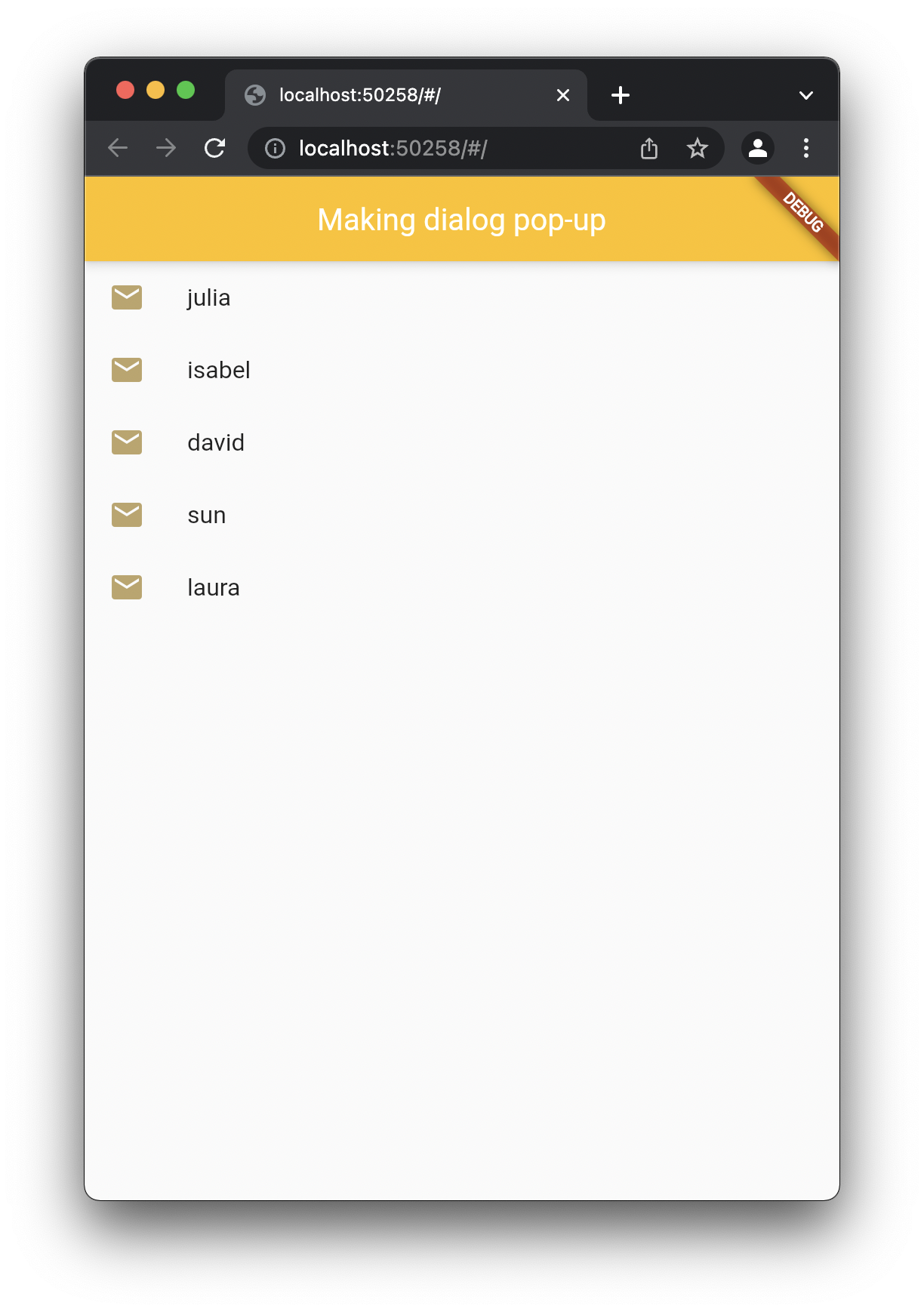
2) 코드
import 'package:flutter/material.dart';

void main() {
  runApp(const MyApp());
}
class MyApp extends StatefulWidget {
  const MyApp({Key? key}) : super(key: key);
  @override
  State<MyApp> createState() => _MyAppState();
}

class _MyAppState extends State<MyApp> {
  var nameset = ['julia', 'isabel', 'david', 'sun', 'laura'];


  @override
  Widget build(BuildContext context) {
    return MaterialApp(
      home: Scaffold(
        appBar: AppBar(
          title: const Text('Making dialog pop-up'),
          backgroundColor: Colors.amber,
        ),

        body: Center(
          child: SizedBox(
            //500이하로는 안줄어듦. 자동 min 효과.
            width : 500,
            child: ListView.builder(
                itemCount: 5,
                itemBuilder: (c,i){
                  return ListTile(
                    leading : const Icon(
                        Icons.mail,
                        color: Color.fromRGBO(150,110,13,100),
                    ),
                    title : Text(nameset[i],
                     ),
                  );
                }
            ),
          ),
        ),
      ),
    );
  }
}
2. Floating Button 사용해서 모달창 띄우기
1) 실행화면
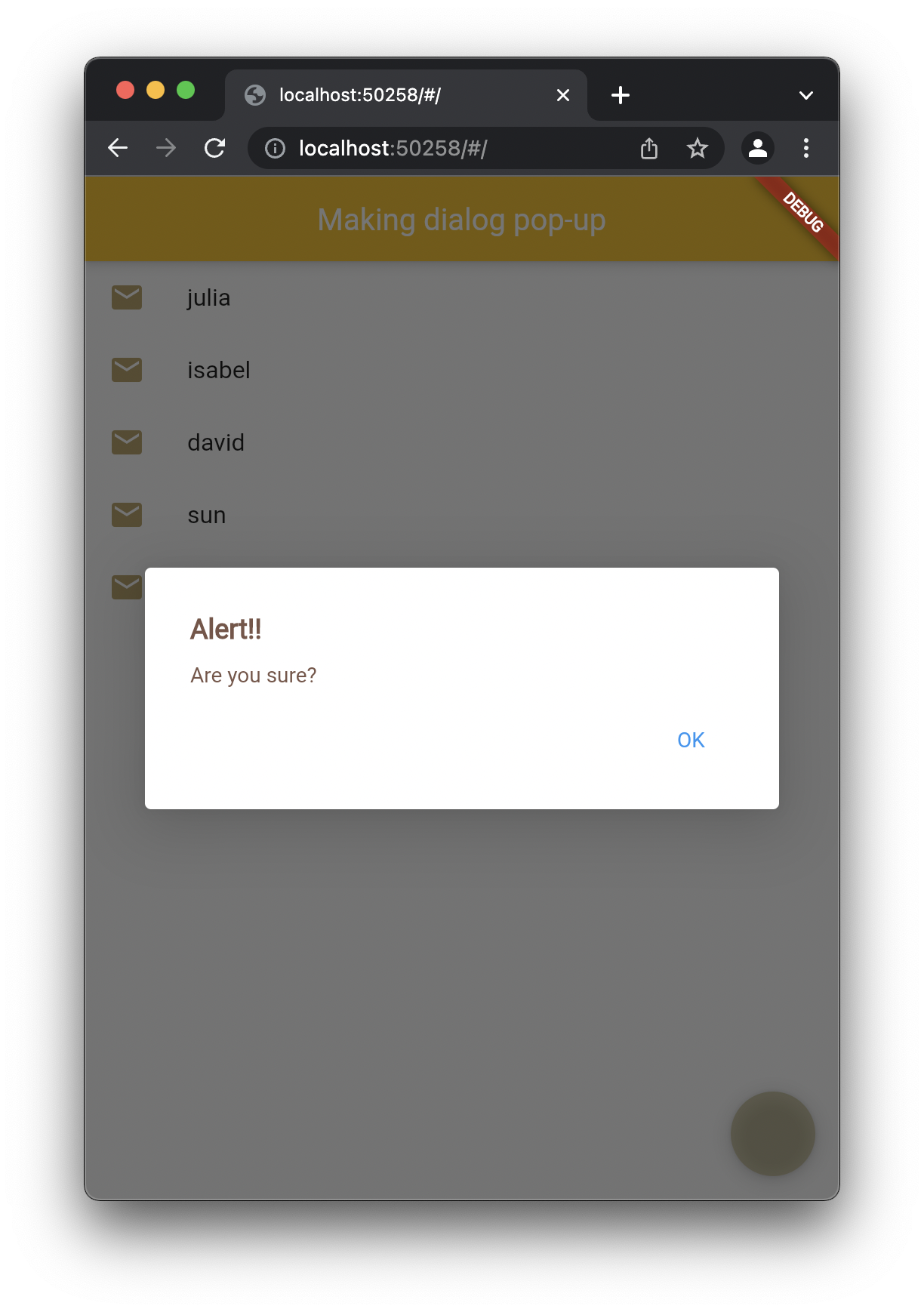
2) 전체코드 (이때, context는 위젯의 위치를 보여주는 기능이라서 부모 위젯 관계도를 전부 담고 있음. return 값이 Material App인 경우, floating button 에서 몇몇 액션이 실행되지 않을 수 있음. 따라서 return Scaffold를 하고, material app의 context를 가진 상위 my app 을 만들거나 build한다고 조정해주면 된다.)
import 'package:flutter/material.dart';

void main() {
  runApp(const MaterialApp(
    home : MyApp()
  ),
  );
}
class MyApp extends StatefulWidget {
  const MyApp({Key? key}) : super(key: key);
  @override
  State<MyApp> createState() => _MyAppState();
}

class _MyAppState extends State<MyApp> {
  var nameset = ['julia', 'isabel', 'david', 'sun', 'laura'];


  @override
  Widget build(BuildContext context) {
    return Scaffold(
        //floating action
        floatingActionButton : FloatingActionButton(

        backgroundColor: const Color.fromRGBO(180,170,120, 100),
        onPressed : () {
          showDialog(context: context, builder: (context) {
            return Dialog(
                child: SizedBox(
                  width: 420,
                  height : 160,

                  child: Padding(
                    padding: const EdgeInsets.all(30.0),
                    child: Align(
                      alignment: Alignment.topLeft,
                      child: Column(
                        mainAxisAlignment: MainAxisAlignment.start,
                        crossAxisAlignment: CrossAxisAlignment.start,
                        children:[
                          const Text('Alert!!', style: TextStyle(
                            color : Colors.brown,
                            fontSize : 18,
                            fontWeight: FontWeight.bold,
                          ),),
                          const SizedBox(
                            height : 12,
                          ),
                          const Text('Are you sure?',
                          style : TextStyle(
                            color : Colors.brown,
                          ), ),
                          const SizedBox(
                            height: 21,
                          ),
                          Align(
                            alignment: Alignment.bottomRight,
                            child: TextButton(
                                onPressed: (){
                              debugPrint('text button has pressed');
                                },
                                child: const Text('OK'),),
                          )
                        ],
                      ),
                    ),
                  ),
                ),
            );
          });
        },
        ),

        appBar: AppBar(
          title: const Text('Making dialog pop-up'),
          backgroundColor: Colors.amber,
        ),

        body: Center(
          child: SizedBox(
            //500이하로는 안줄어듦. 자동 min 효과.
            width : 500,
            child: ListView.builder(
                itemCount: 5,
                itemBuilder: (c,i){
                  return ListTile(
                    leading : const Icon(
                        Icons.mail,
                        color: Color.fromRGBO(150,110,13,100),
                    ),
                    title : Text(nameset[i],
                     ),
                  );
                }
            ),
          ),
        ),
      );

  }
}
'Flutter 플러터 > 플러터 공부기록' 카테고리의 다른 글
| flutter theme 플러터 테마로 아이콘 색 변경, 앱바 색 바꾸기 (0) | 2022.07.10 |
|---|---|
| 플러터 버튼으로 사진 넘기는 갤러리 만들기 (0) | 2022.05.02 |
| 플러터 Flutter 키보드 구현하고 입력된 값 팝업으로 띄우기 (0) | 2022.04.26 |
| 플러터 Flutter Stateful widget 예제 (코드 설명 포함) (0) | 2022.04.26 |
| [플러터구현2] 플러터로 프로필 만들기 Drawer, UserAccountsDrawerHeader, ListTile 활용 (코드 설명 포함) (0) | 2022.04.21 |