[flutter] stateful widget - navigating, switching pages using tab
2022. 7. 22. 16:34ㆍ카테고리 없음
1. result
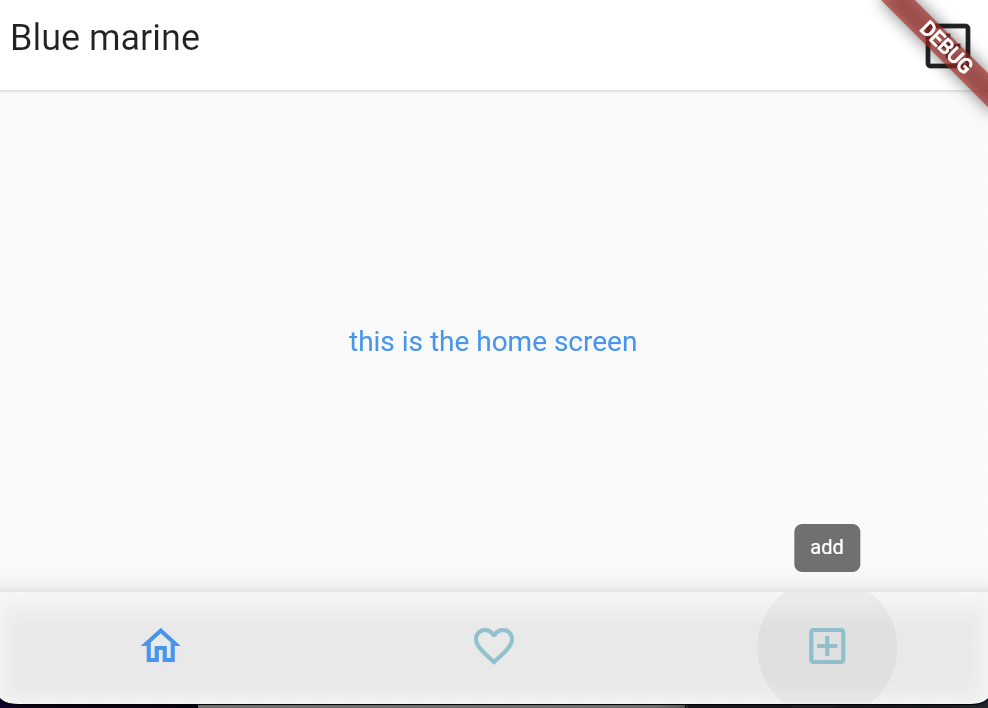
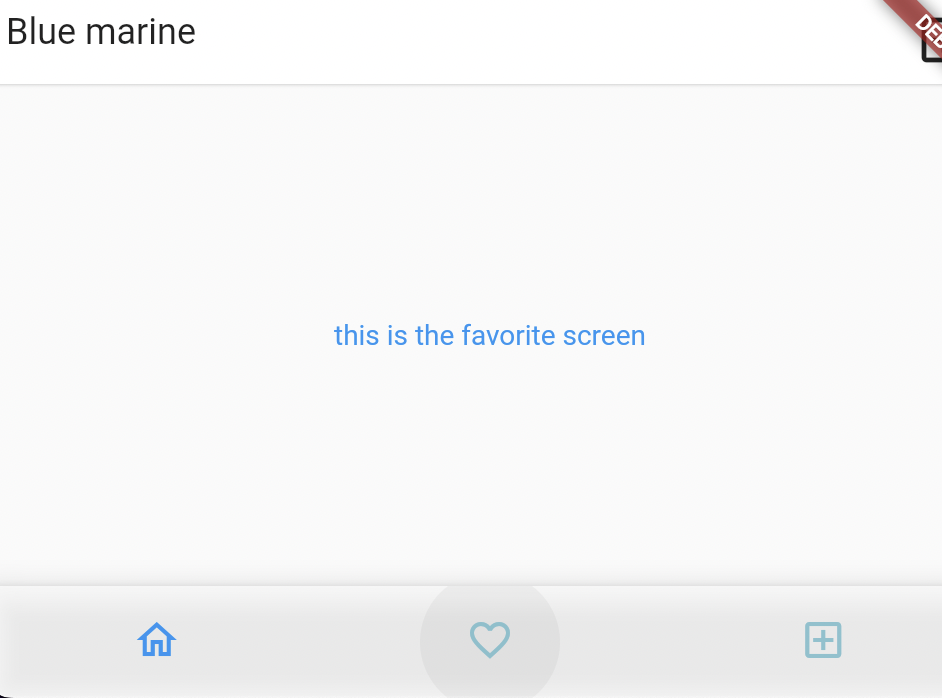
If the user presses the 'home' button, then the screen shows the sentence of 'this is the home screen'.
Whenever user presses each button, the screen changes with the appropriate sentence.
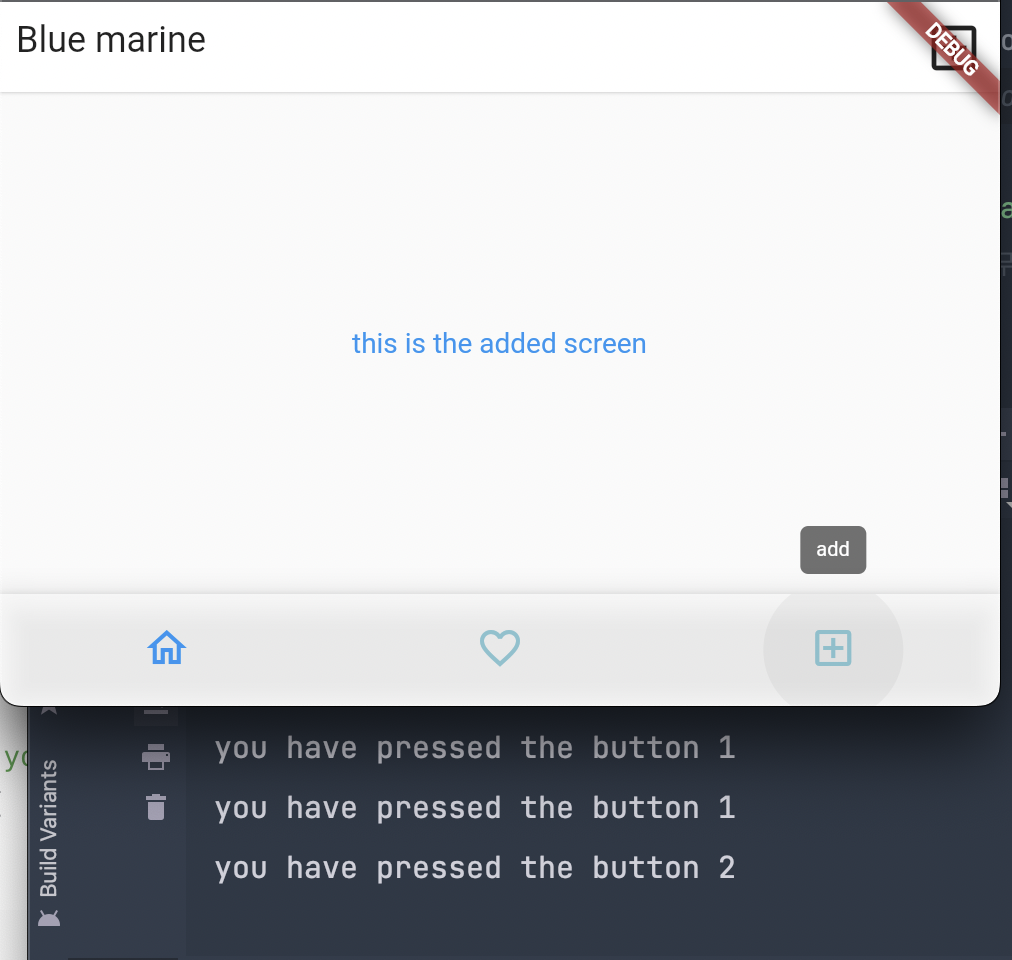
Console shows the button number when the user presses the each button.
2. code
body:  [Center(child: Text('this is the home screen', style : Theme.of(context).textTheme.bodyText1)),Center(child: Text('this is the favorite screen', style : Theme.of(context).textTheme.bodyText1)),Center(child: Text('this is the added screen', style : Theme.of(context).textTheme.bodyText1)),][tab],
    bottomNavigationBar: BottomNavigationBar(
      backgroundColor: Colors.white70,
      // to hide the labels of each icon
      showSelectedLabels: false,
      showUnselectedLabels: false,
        unselectedItemColor: const Color.fromRGBO(109, 184, 200, 50),
        //bottom navigation bar에서 버튼의 onPressed같은 기능
      onTap: (i){
        debugPrint('you have pressed the button $i');
        setState((){
          tab=i++;
        });
      },
      items:const [
        BottomNavigationBarItem(
          icon:Icon(Icons.home_outlined),
          label : 'home'
        ),
        BottomNavigationBarItem(
          icon:Icon(Icons.favorite_border_outlined),
          label : 'cart'
        ),
        BottomNavigationBarItem(
            icon:Icon(Icons.add_box_outlined),
            label : 'add'
        ),
      ]

    ),
  );
}
3. explanation
1) stateful widget
make a stateful widget and call the scaffold.
class MyApp extends StatefulWidget {
  const MyApp({Key? key}) : super(key: key);
  @override
  State<MyApp> createState() => _MyAppState();
}

class _MyAppState extends State<MyApp> {
  @override
  Widget build(BuildContext context) {
    return Scaffold(

    );
  }
2) scaffold
2-1 ) inside the scaffold, make the appbar, body
class MyApp extends StatefulWidget {
  const MyApp({Key? key}) : super(key: key);
  @override
  State<MyApp> createState() => _MyAppState();
}

class _MyAppState extends State<MyApp> {
  var tab =0;
  @override
  Widget build(BuildContext context) {
    return Scaffold(
      //1. appbar
      appBar: AppBar(
        toolbarHeight: 45,
          leadingWidth: 120,
          leading: const Padding(
            padding:  EdgeInsets.all(8.0),
            child: Text("Blue marine", style : TextStyle(
                fontSize : 18, fontWeight: FontWeight.normal, color: Colors.black87)),
          ),
          actions: [IconButton(
              icon : const Icon(Icons.add_box_outlined),
              onPressed: (){
                a=a++;
              },
              iconSize: 30,
          ),],),

      body:  [Center(child: Text('this is the home screen', style : Theme.of(context).textTheme.bodyText1)),Center(child: Text('this is the favorite screen', style : Theme.of(context).textTheme.bodyText1)),Center(child: Text('this is the added screen', style : Theme.of(context).textTheme.bodyText1)),][tab],

      ),
    );
  }
on body, make the screen that fits the buttons on bottom navigation bar
2-2 ) bottom naviagtion bar
to hide the labels, set 'showSelected or showUnselected Lables' as false.
bottomNavigationBar: BottomNavigationBar(
  backgroundColor: Colors.white70,
  // to hide the labels of each icon
  showSelectedLabels: false,
  showUnselectedLabels: false,
    unselectedItemColor: const Color.fromRGBO(109, 184, 200, 50),
    //bottom navigation bar에서 버튼의 onPressed같은 기능
  onTap: (i){
    debugPrint('you have pressed the button $i');
    //state 상태변화는 무조건  set State 안에 넣어야.
    setState((){
      tab=i++;
    });
  },
  items:const [
    BottomNavigationBarItem(
      icon:Icon(Icons.home_outlined),
      label : 'home'
    ),
    BottomNavigationBarItem(
      icon:Icon(Icons.favorite_border_outlined),
      label : 'cart'
    ),
    BottomNavigationBarItem(
        icon:Icon(Icons.add_box_outlined),
        label : 'add'
    ),
  ]

),
with the onTap function, we can change our pages with buttons.
we can confirm it with debugPrint function.